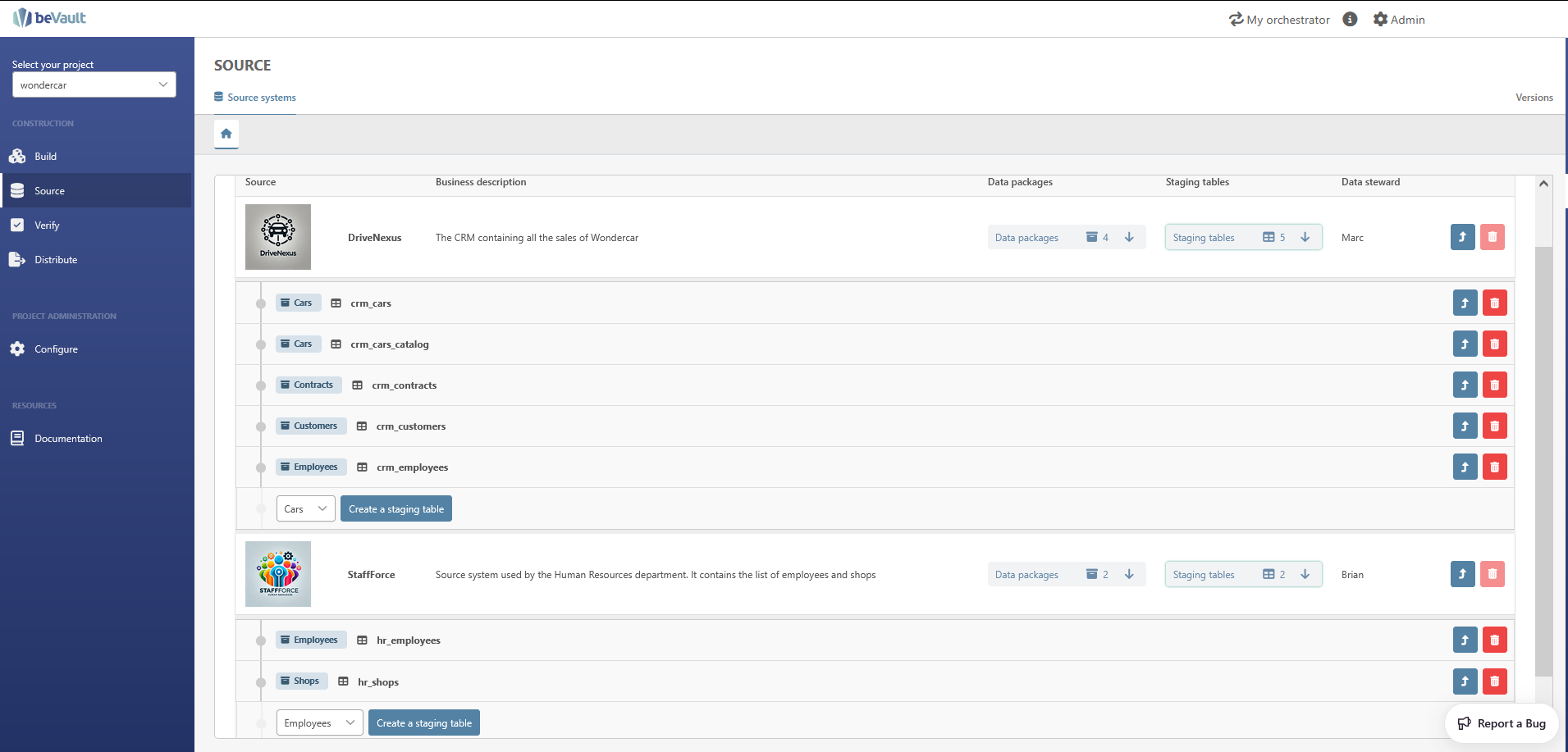
Now that you have all the structure and metadata to manage your sources and data packages, it is time to create the physical staging table. Those staging tables will receive the incoming data from the source system before loading them into the data model.
-
To create a new staging table, go to the “Source Systems” submodule
-
Navigate in the tree structure that you previously created with the sources and data package
-
Click on the + Create a Staging Table button next to the data package “Employees” in the source “Human Resource”.
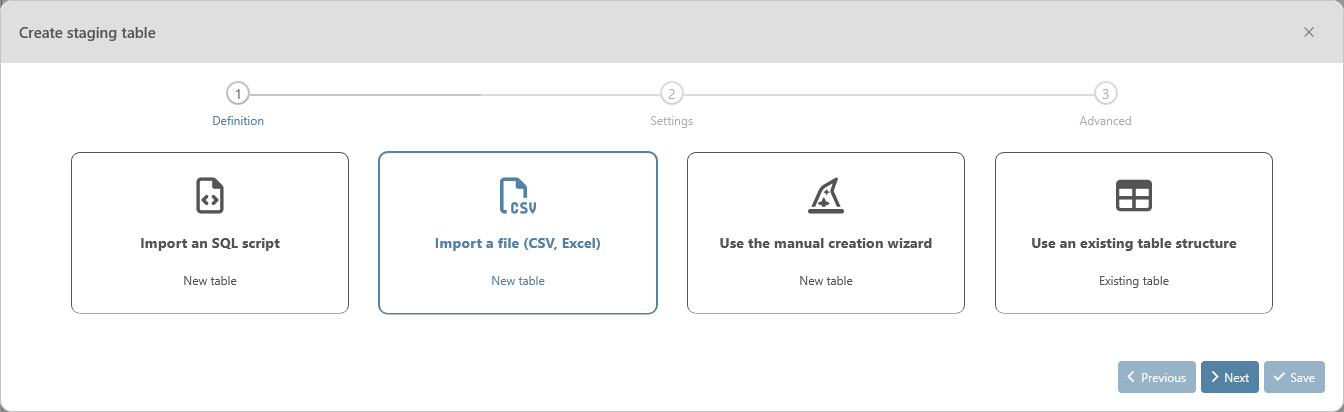
This will open a multistep modal to create the staging table. In this tutorial, we will generate a staging table based on an Excel file, but there are many ways to create them. Source Systems | Create a staging table
-
Select “Import a file (CSV, Excel). Then click on “Next”.
-
Download the HR source file on Tutorial Scenario - WonderCar
-
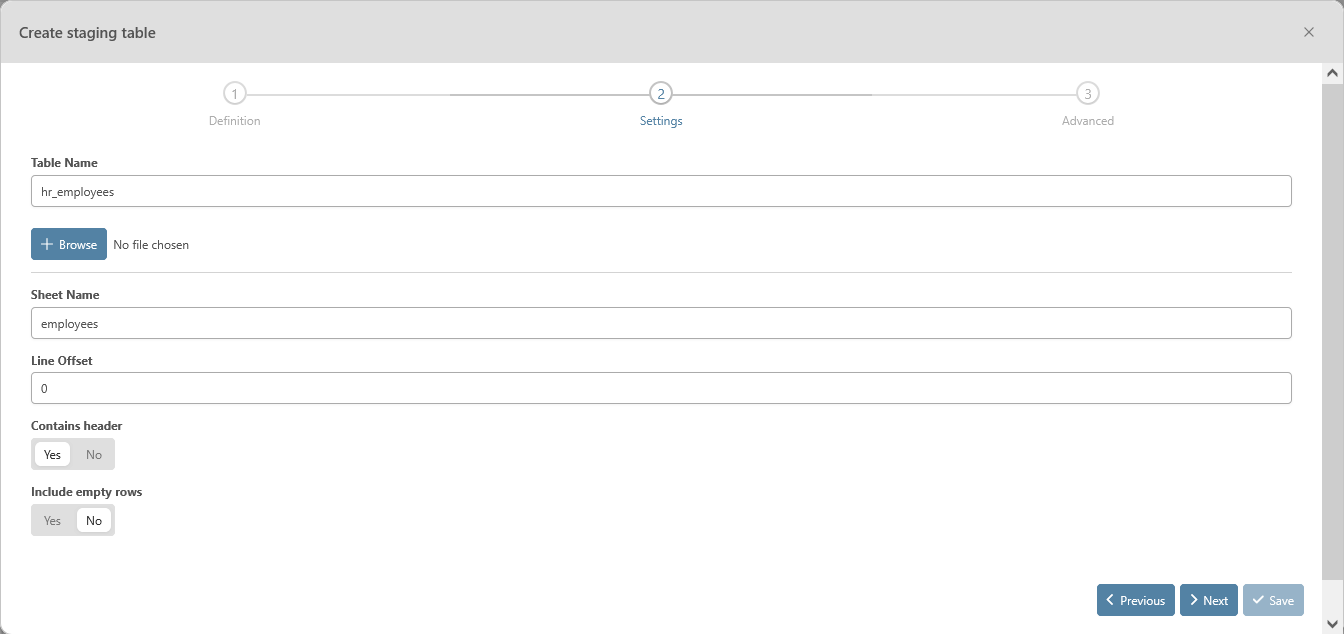
Enter “hr_employees” as the table name.
-
Click on the “Browse” button and select the file you previously downloaded
-
Enter “employees” for the sheet name and click on “Next”
-
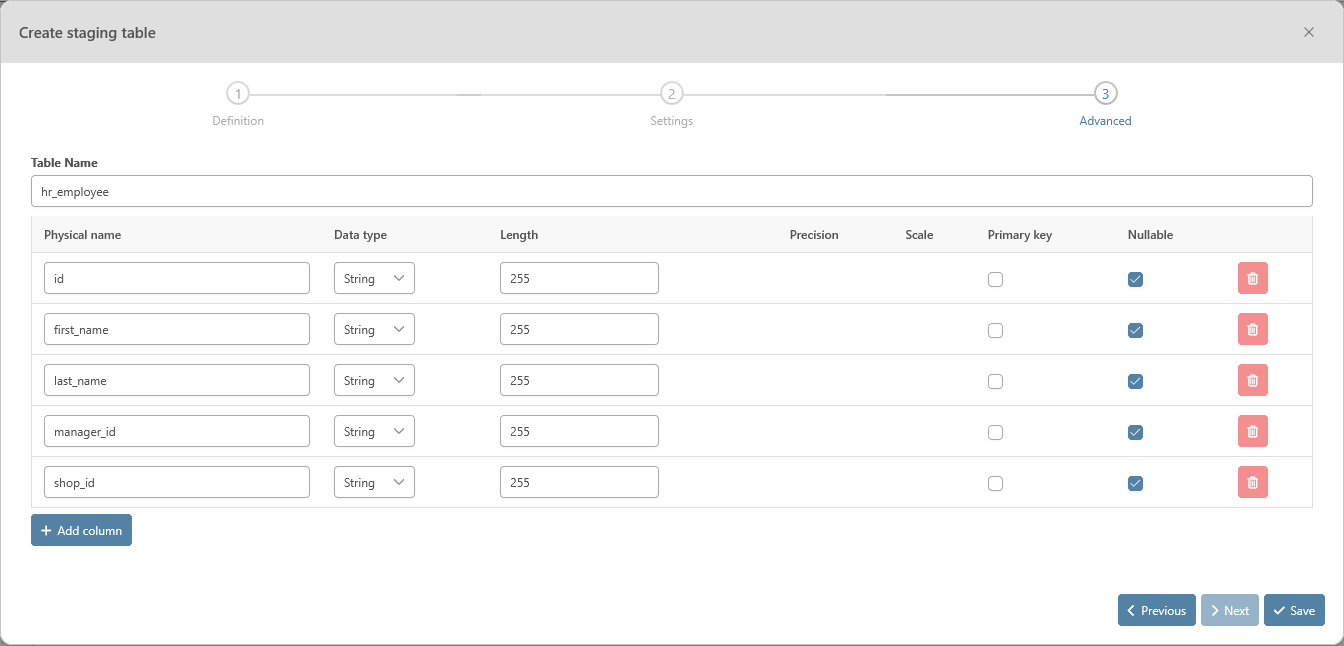
beVault will automatically load the columns of the file. For this table, you can check “Primary Key” for the column “id” and click on “Save”.
-
Repeat those actions for the other staging tables
Resolution