
What is a mapping?
A mapping is the link between a staging table’s columns and the entities of your Data Vault model (hubs, links, satellites, reference tables). It tells beVault how to take columns from a specific staging table and load them into the right Raw Vault objects.
-
Practically, a mapping exists on a staging table and points to a model entity; an entity can have multiple mappings (across sources/packages), while a satellite always has exactly one mapping.
How mappings drive the load
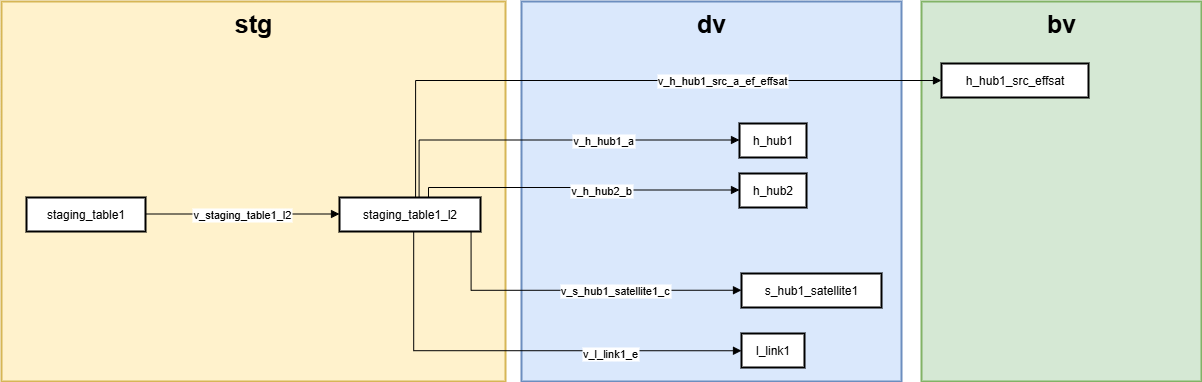
Practically, when you deploy your model, beVault generates a State Machine in States (the orchestrator) for each staging table. That State Machine uses the mappings defined on that staging table to load data from the staging area into the Raw Vault. Since v3.0, the naming convention for these State Machines is: [project]_[environment]Load_Staging[staging table name]
-
For each mapping, beVault generates a loading view that moves data from staging level 2 into the corresponding Raw Vault entity (one view per mapping).
-
During loads, hard rules, hash keys (hk), and hashdiffs are computed in staging L2; the generated views then load hubs, links, and satellites; effectivity satellites are updated for full-load mappings to track presence over time.
Mapping management
In the staging table’s dynamic tab, you can manage all your mappings through the Mappings panel on the right side: it stays visible and usable regardless of which view you’re in—Metadata, Data, or Connections—so you can create, edit, or review hub, link, satellite, and reference table mappings without leaving the tab.
Hub mapping
The new mapping of a hub can be done in the ‘Source’ module after choosing the staging table that needs a mapping.
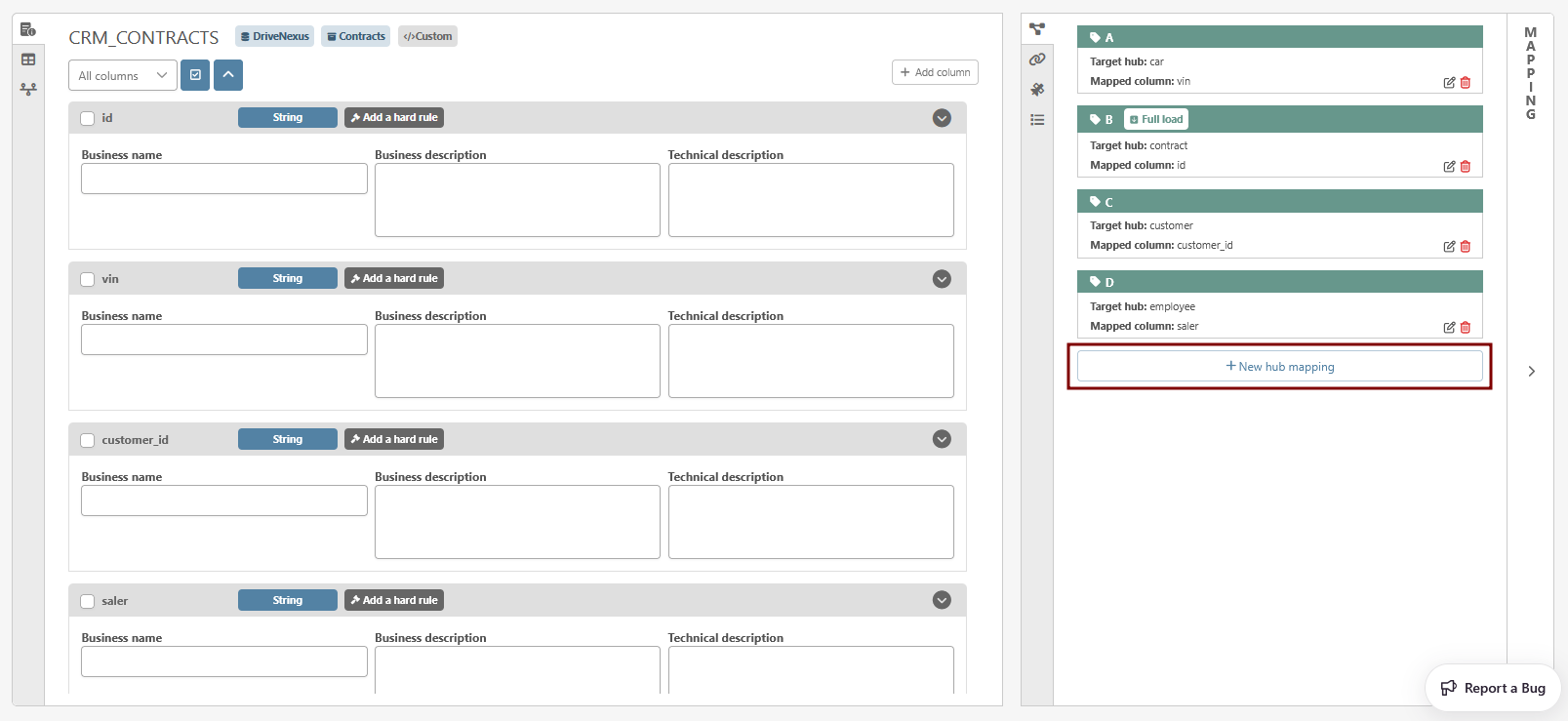
Then the creation hub mapping page will appear.
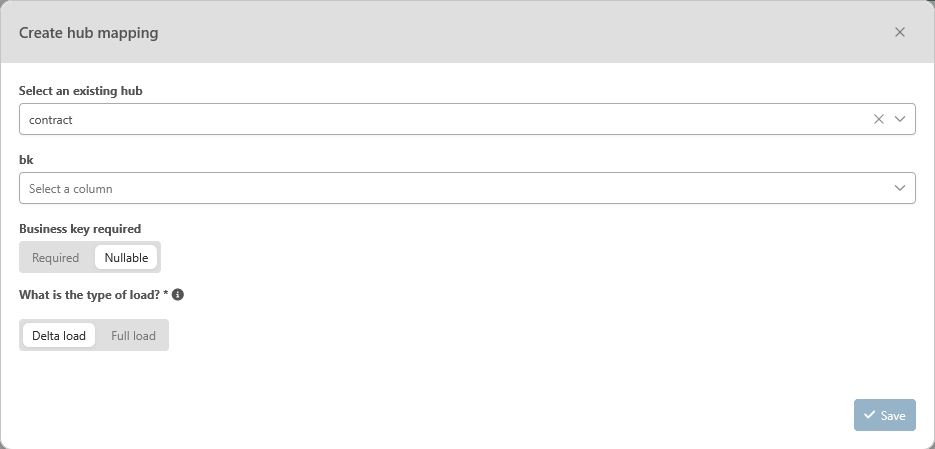
From this page, the user must provide
-
Select an existing hub: mandatory — select a hub in the dropdown list.
-
bk [string]: mandatory — Column that contains the business
-
Expect null business key: — May the column contain NULL values in a business standpoint? This information will determine which ghost record to apply in related link.
-
Type of load: Mandatory — Define if this staging table is a delta load (only a sub-set of objects) or if it as full load (all objects) for the mapped hub in the current source.
In case of a full load, an effectivity satellite will be created to track the presence of records in each load.
Hub and link mappings support two load types that control how beVault interprets each run of your staging data:
-
Full load
-
The staging table contains the complete set of business keys (hub) or relationships (link) for each load. beVault uses this to detect removals (missing keys/relationships) and updates effectivity satellites to track presence over time per source.
-
-
Delta load
-
The staging table contains only a subset (new/changed) of keys or relationships. Use this when deliveries are incremental and do not represent the full population; deletions are not inferred from absence in the file.
-
Link mapping
The new mapping of a link can be done in the ‘Source’ module after choosing the staging table that needs a mapping.
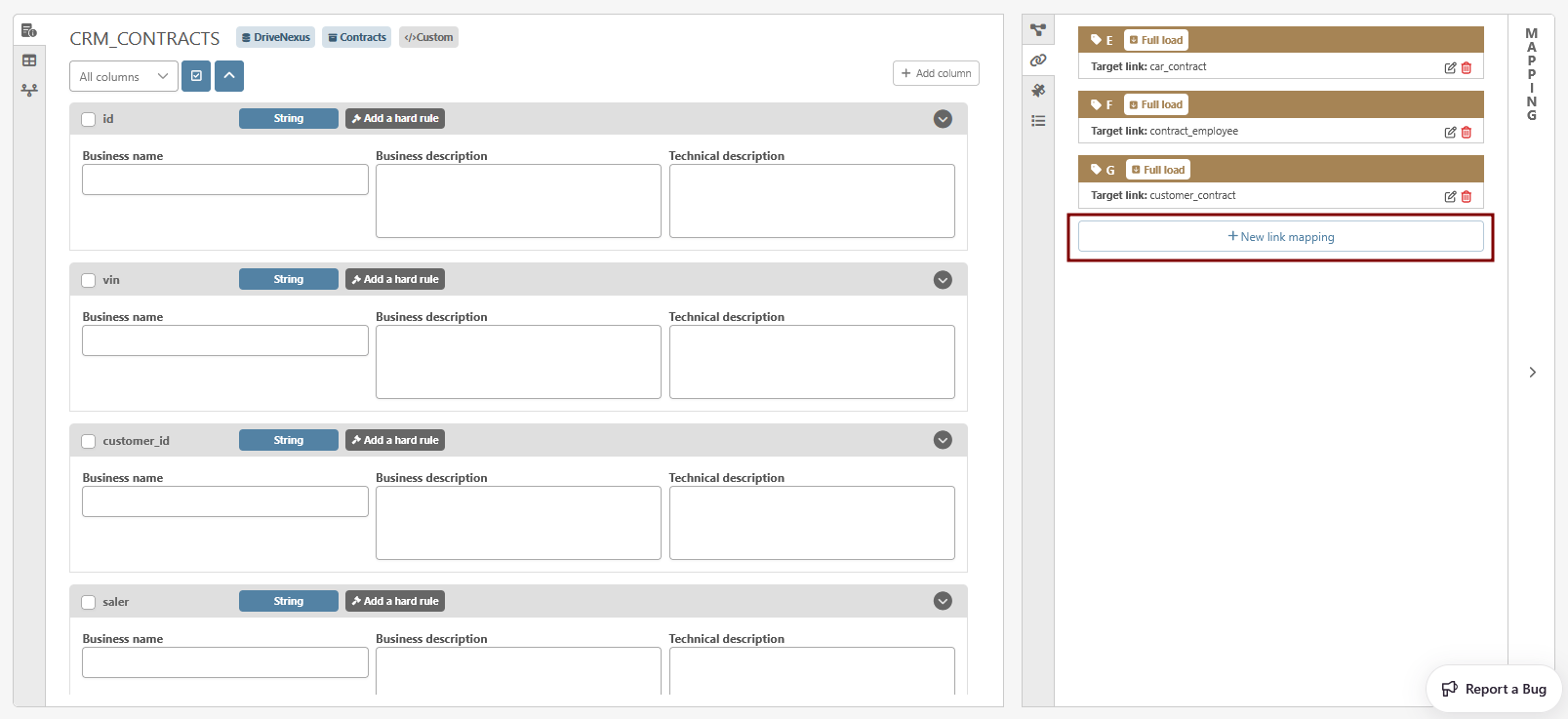
Then the creation link mapping page will appear.
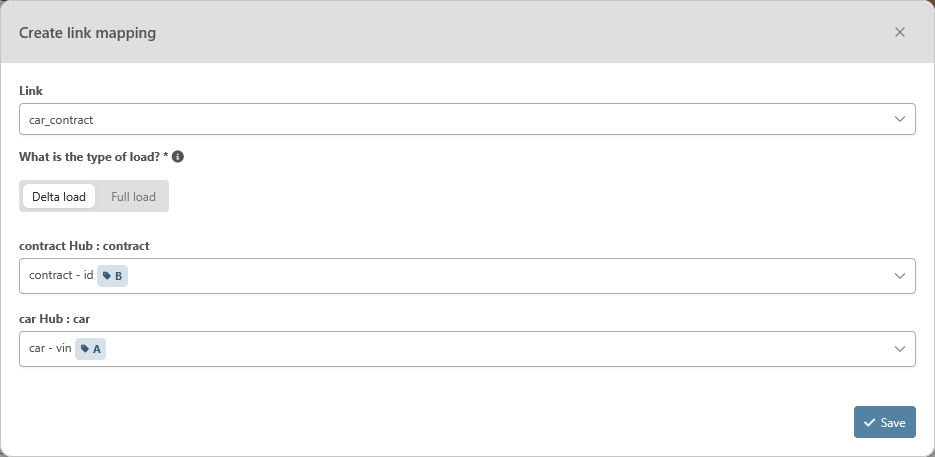
To create a link mapping, the users will need to provide the following information:
-
Link: MANDATORY — Select an existing link.
-
Type of load: Mandatory — Define if this staging table is a delta load (only a sub-set of objects) or if it as full load (all objects) for the mapped link in the current source.
In case of a full load, an effectivity satellite will be created to track the presence of records in each load.
You can only set one mapping as a full load per link and per source
-
Hub references and dependent children: MANDATORY — Select the mappings of the hub for each hub reference and the column to map to the dependent children
Satellite mapping
Since the satellite are always source related, they can only be created from these staging table tabs.
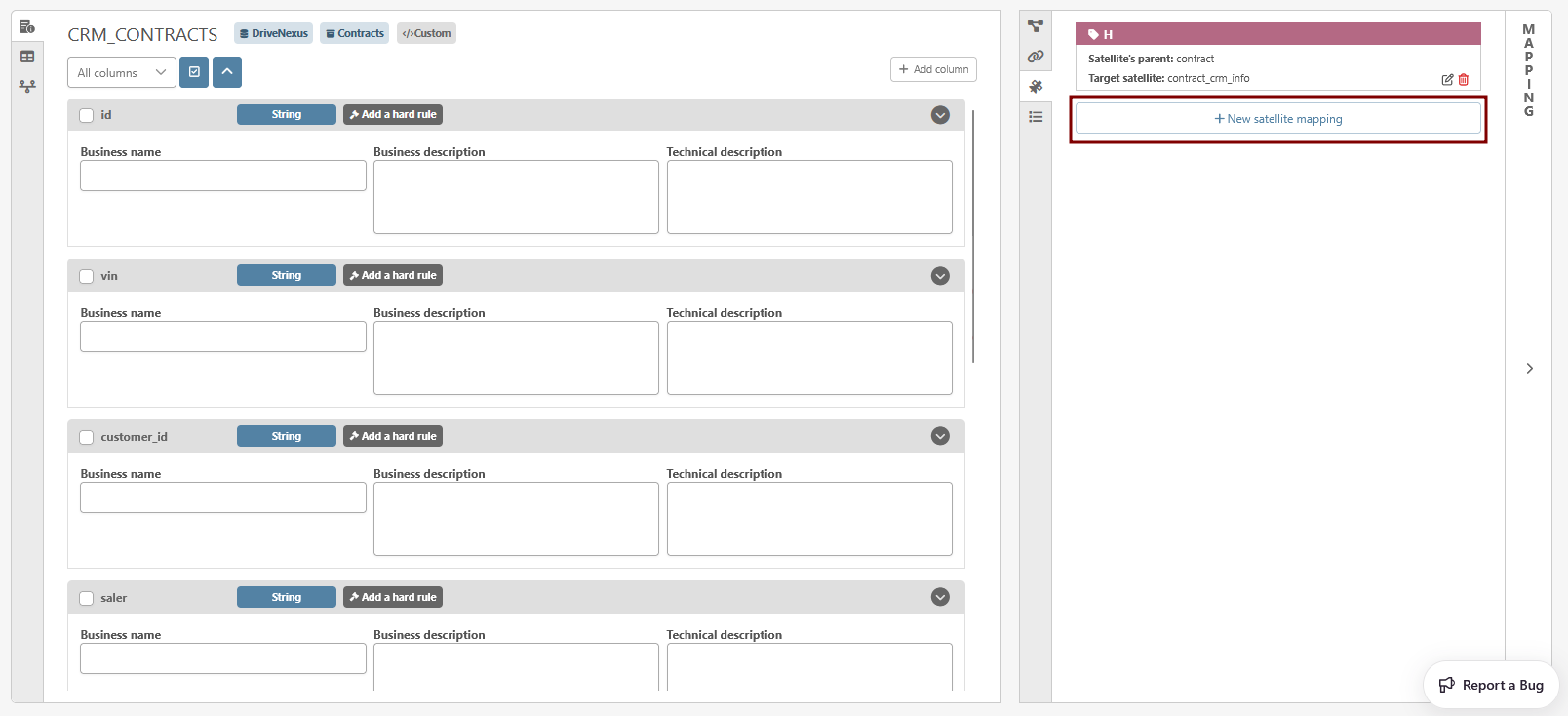
Then the creation link mapping page will appear.
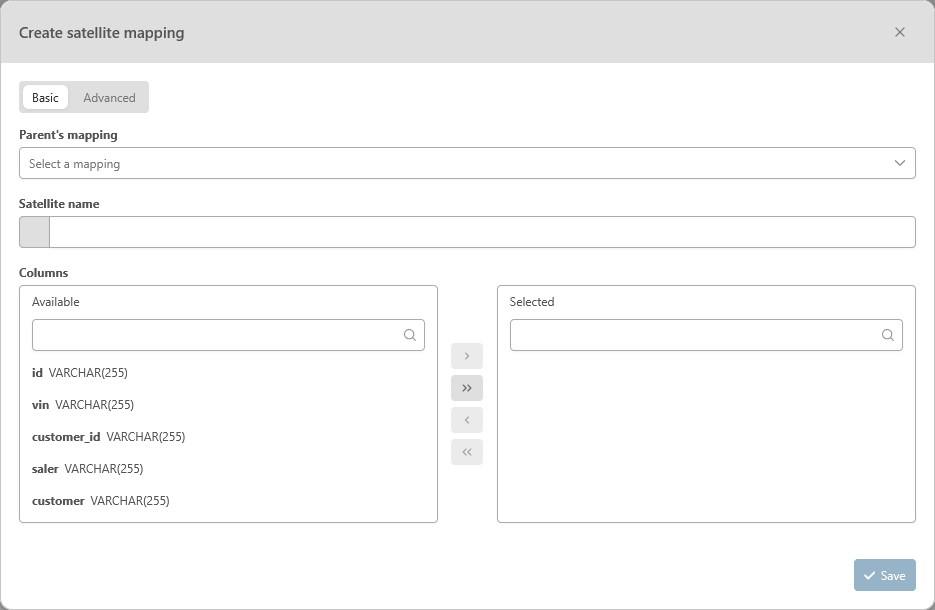
To create a satellite, the users will need to provide the following information:
-
Basic or Advanced: MANDATORY — Define if you need to access advanced features for the creation of your satellite or not. The advanced feature allows the user to create multi-active satellites.
The following fields will require information whether you are in the basic or the advanced mode:
-
Parent’s mapping: MANDATORY — Select a mapping from the selection available in the dropdown list. The satellite will be attached to the entity of the selected mapping.
-
Satellite Name: MANDATORY — Name of the satellite. To avoid conflict with other satellites from other sources, we recommend prefixing them with the source name
-
Columns Selection: MANDATORY — Select the column(s) of the staging table that you want to display in the satellite
Advanced satellite mapping
If you choose to use the advance mode, besides the previous field, the following fields will require information
-
Satellite type: MANDATORY — Choose if you wish to create a descriptive satellite or a multi-active satellite
-
if you choose to create a descriptive satellite, no other information will be required
-
if you choose to create a multi-active satellite, the following information will be required
-
Multi-active satellite mapping
-
Multi-active type: MANDATORY — Choose whether your multi-active satellite will insert only sets of records that changed since the last load for a given parent key (Delta-driven) or all the records of the load batch (Standard).
Standard: On each load, all records are inserted, yielding a consistent load_dts across the set and simplifying downstream queries. This is the only variant recognized by the Data Vault Alliance.
Delta-driven: A “multi-row” hashdiff per hash key is used to detect changes across the full set of records for the same hash key; when a change is detected, all sub-records for that key are (re)inserted to preserve a single load_dts.
-
Sequence column: MANDATORY — Select the column that will be used to determine the sequence/order to use in your delta-driven multi active satellite
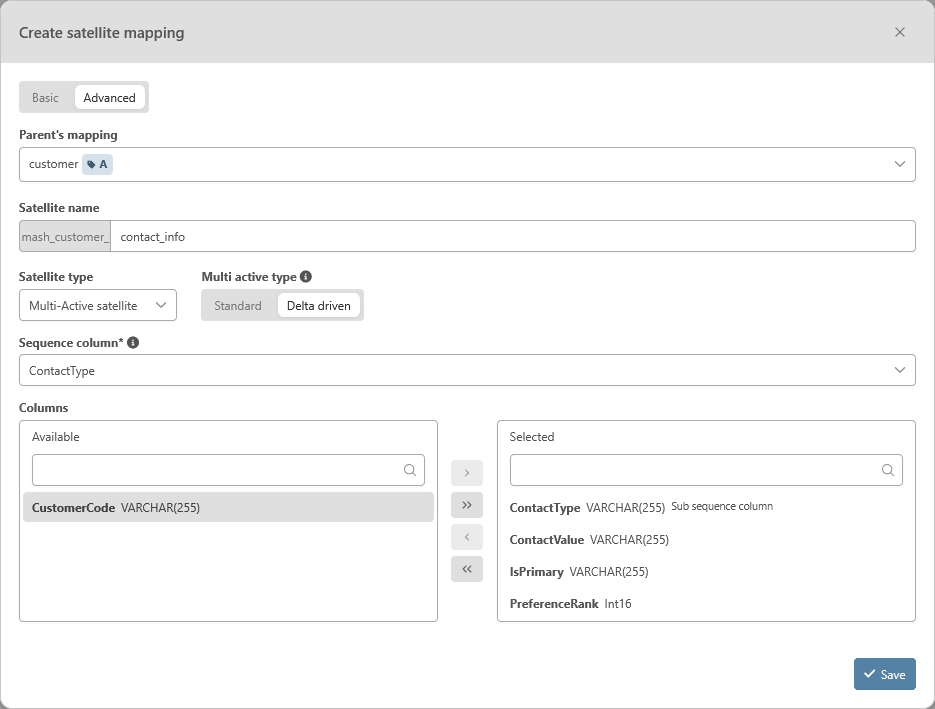
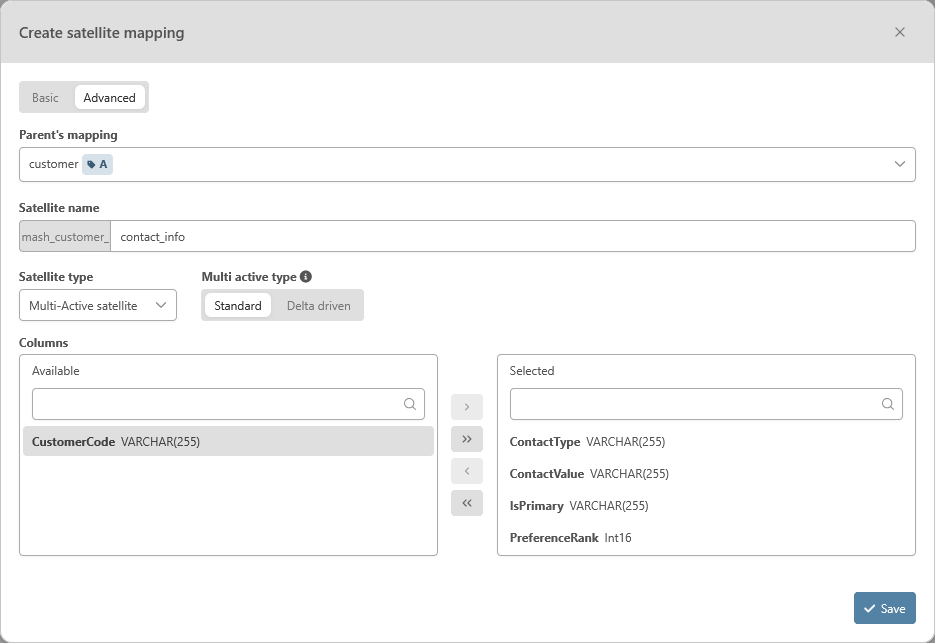
Please note that unlike the descriptive satellite, no view will be automatically created in the business vault schema ('bv') to calculate the end date of validity of the information in the satellite
Reference Table mapping
The new mapping of a reference table can be done in the ‘Source’ module after choosing the staging table that needs a mapping.
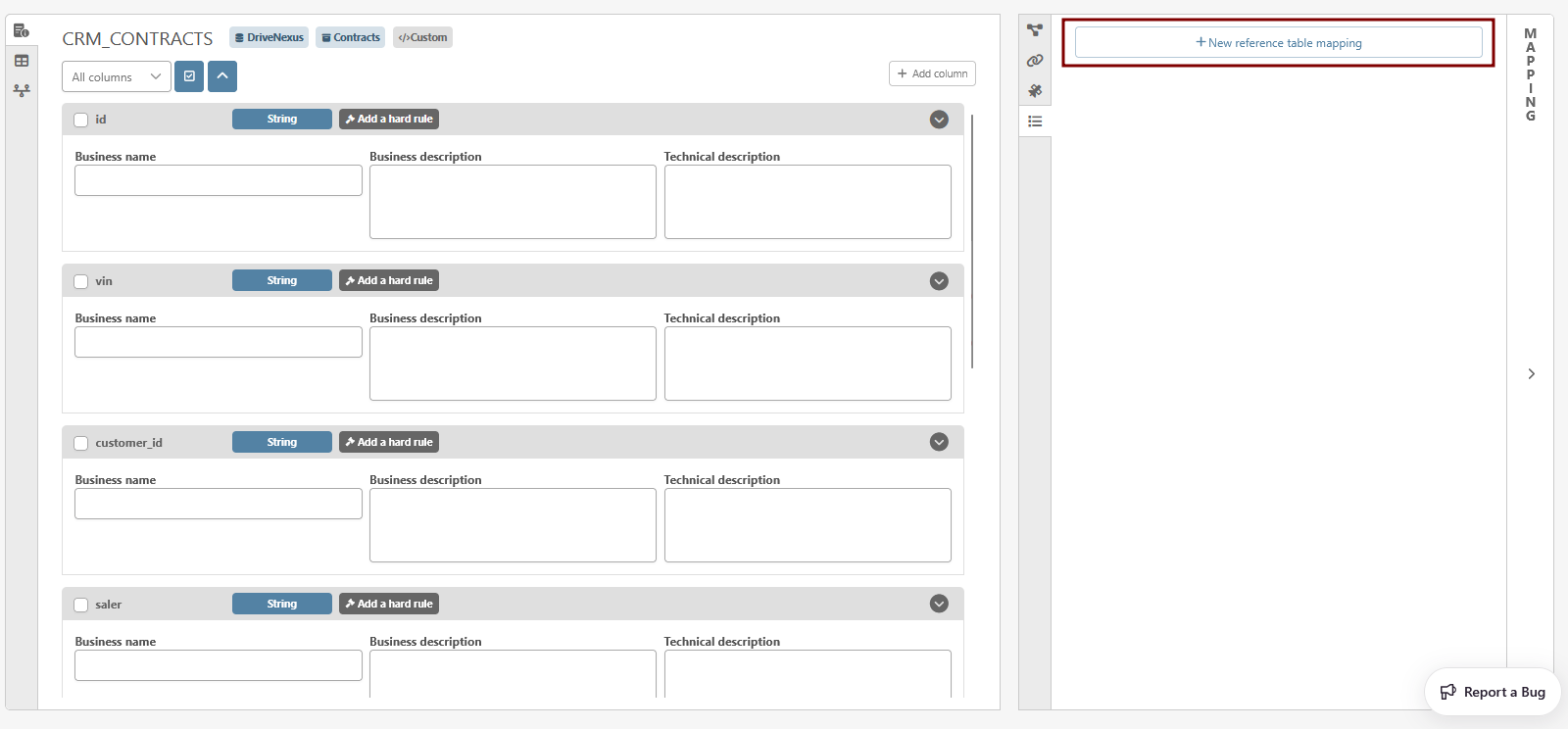
The creation page for the reference table will appear.
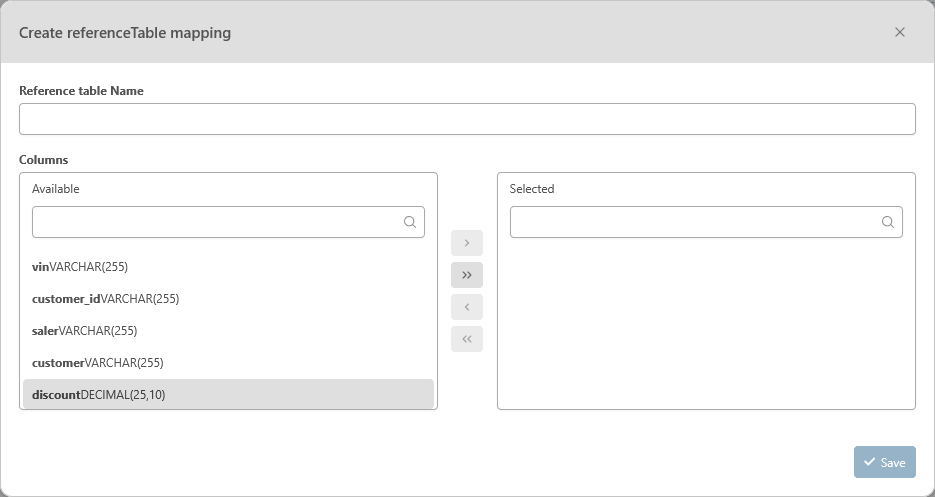
To create a reference table, the users will need to provide the following information:
-
Reference Table Name: MANDATORY — Name of the reference table
-
Columns Selection: MANDATORY — Select the column(s) of the staging table that you want to display in the reference table
Reference table / Satellite mappings
Users can also initiate the mapping of a satellite or reference table by selecting columns from the staging tables.
When columns are selected, two new buttons appear in the upper right of the panel:
-
Map to satellite
-
Map to reference table
Clicking one of these buttons opens a pop-up wizard, which includes a pre-selection of columns based on the user’s earlier selection.
