
If you followed the previous steps, you should have a data model in your database, as well as some state machines in States. Everything has been automatically generated based on your actions in beVault product.
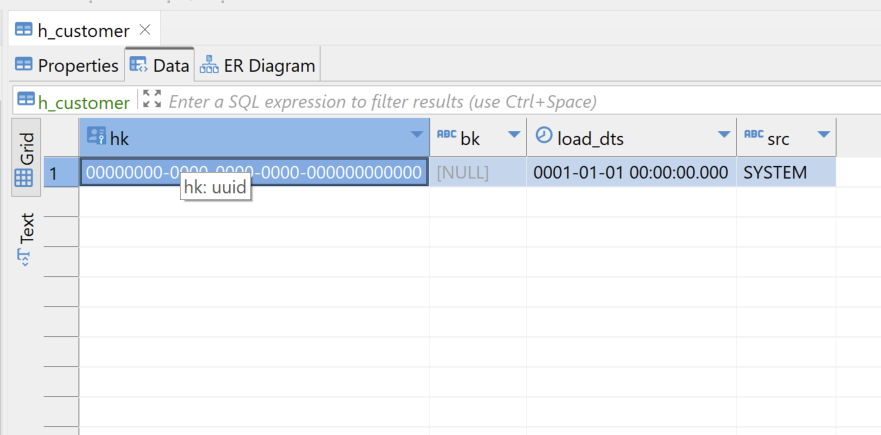
If you look closely at the tables generated in the schema “dv”, you will see that they are all almost empty. This is because we still didn’t execute the workflows to load the data from the staging to the data vault.
In this section, we will see how to execute the state machines to load the data in the data vault and run the data quality tests that we previously created.
-
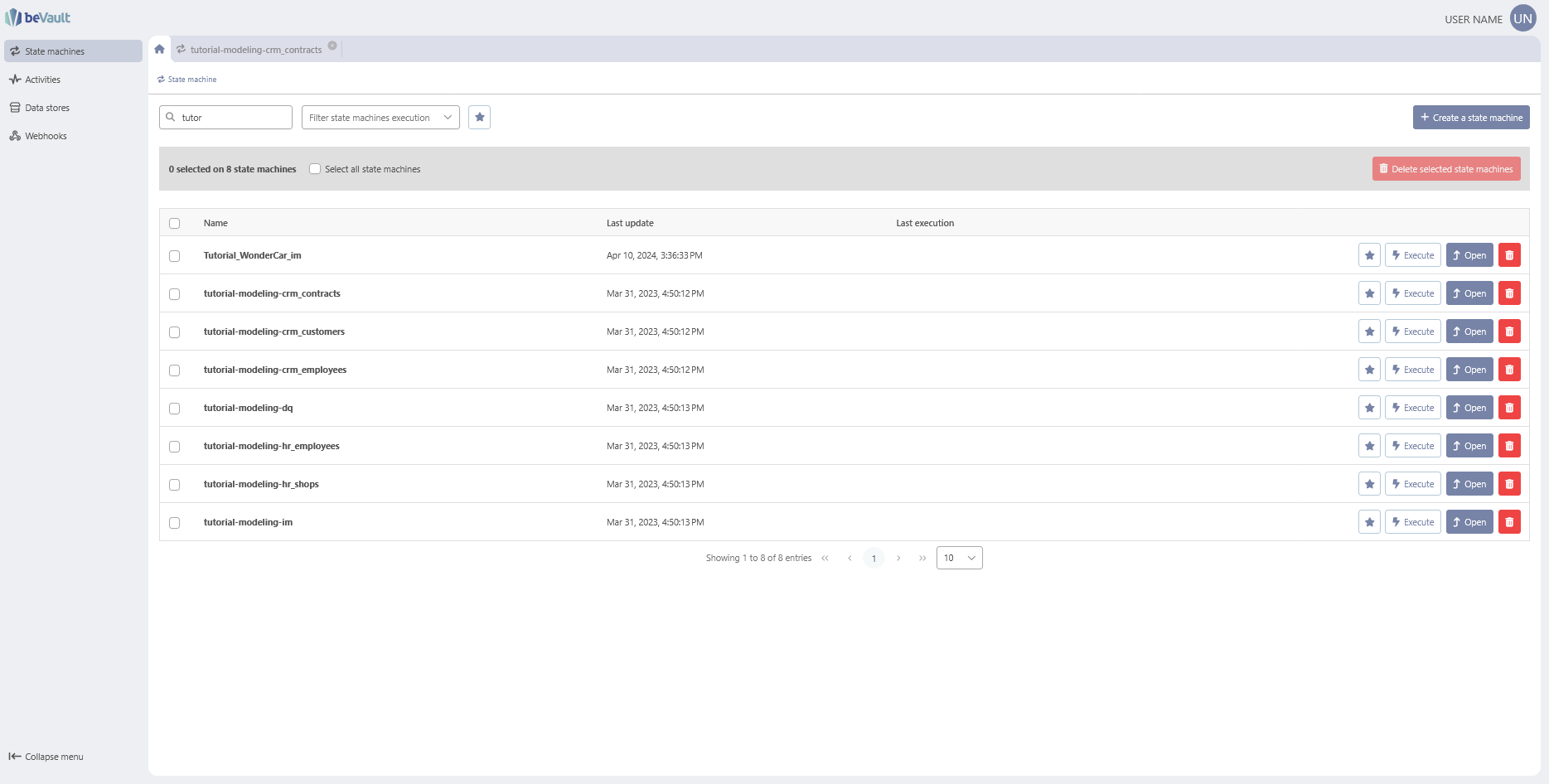
First, log in to States and go to “State Machines”
-
In the filter bar, search for “[project id]_[environment]_Load_Staging” (replace project id and environment with your project’s info) to display the state machines generated during deployment.
-
Select the state machines used to load the staging tables.
-
Click Execute selected state machines.
-
In the dialog, enter an optional execution name.
-
Under Input configuration, select Shared input for all executions.
-
Enter
{}as the shared input. -
Click Execute selected state machines.
The execution report displays how many state machines started successfully and how many failed to start.
Important: This report only indicates whether the state machines started successfully. It does not indicate whether their executions completed successfully. Open the executions and verify their final statuses separately.
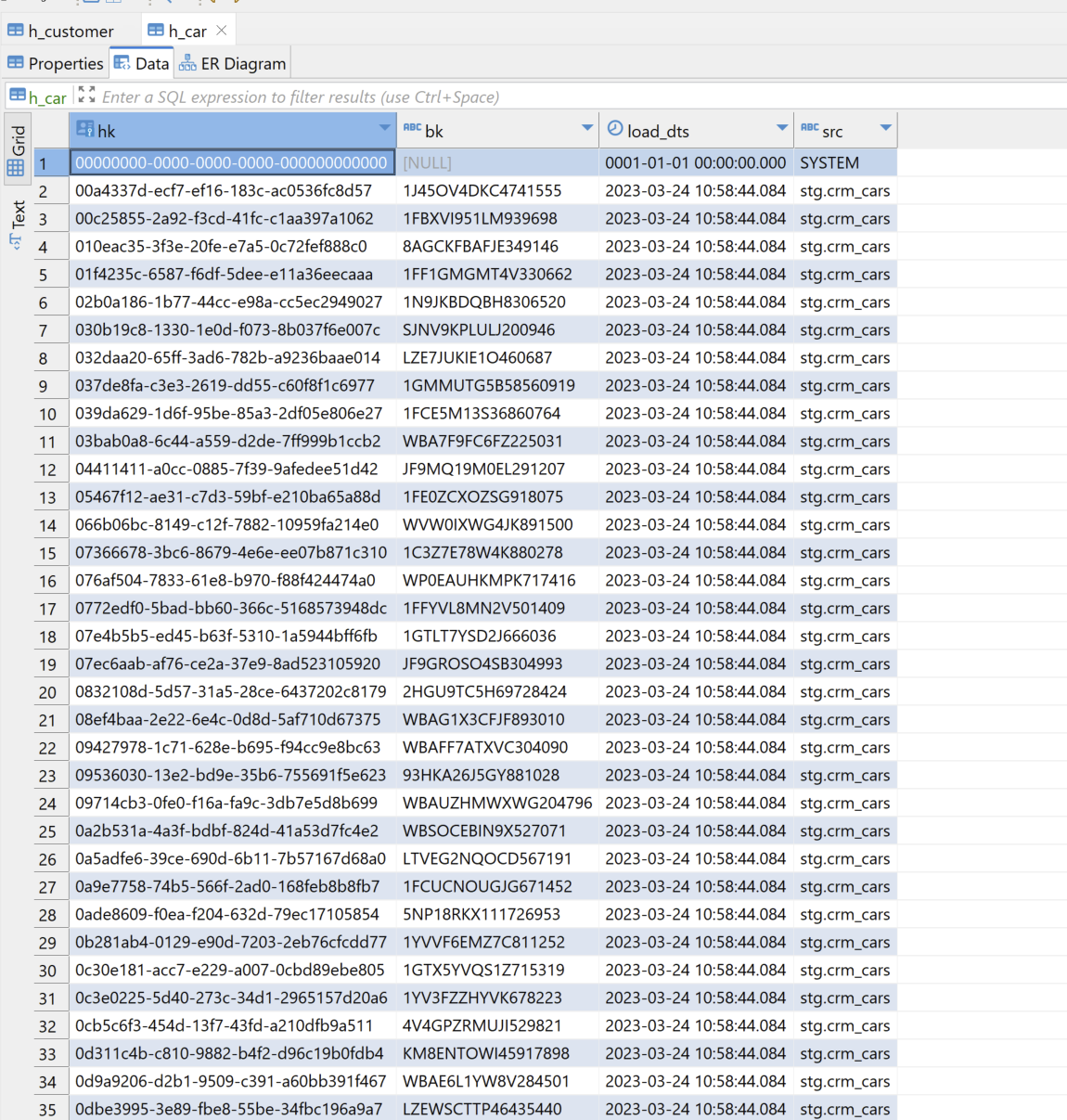
If you return to your tables, you will see that you now have some data in it!
If you want to automate the extraction of data directly from your sources, you can take a look at the documentation of States to create your own state machines. States User Reference Guide