
The API keys submodule allows you to generate and manage API keys for programmatic access to beVault's REST API.
This feature enables integration with external systems and automation of beVault operations.
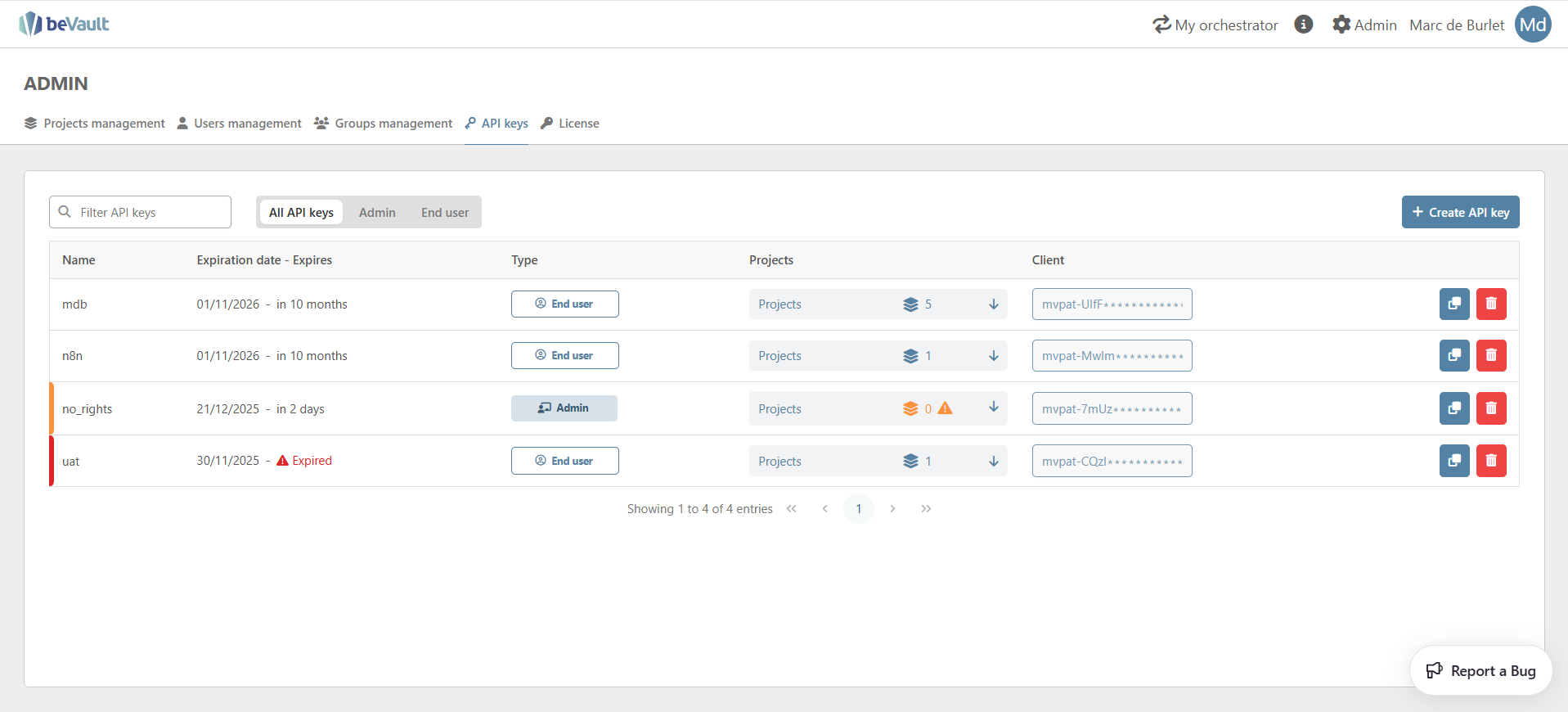
It is accessible from the client admin in the upper-right corner of the screen for administrators.
Overview
API keys provide secure service-to-service access to beVault's metaVault API without relying on individual user credentials. Each API key can be configured with specific permissions, expiration dates, and user types, similar to regular user management.
Use cases for programmatic access
-
AI-Powered automation: Use AI agents to update IM script metadata (see example) or automatically generate data models
-
Data catalog integration: Synchronize beVault metadata with external data catalogs bidirectionally
-
CI/CD and DevOps: Automate deployments, environment synchronization, and scheduled operations
-
Custom applications: Build dashboards, integrate with third-party tools, or generate automated reports
The API Keys submodule is located in the Admin module.
Viewing the list of API keys
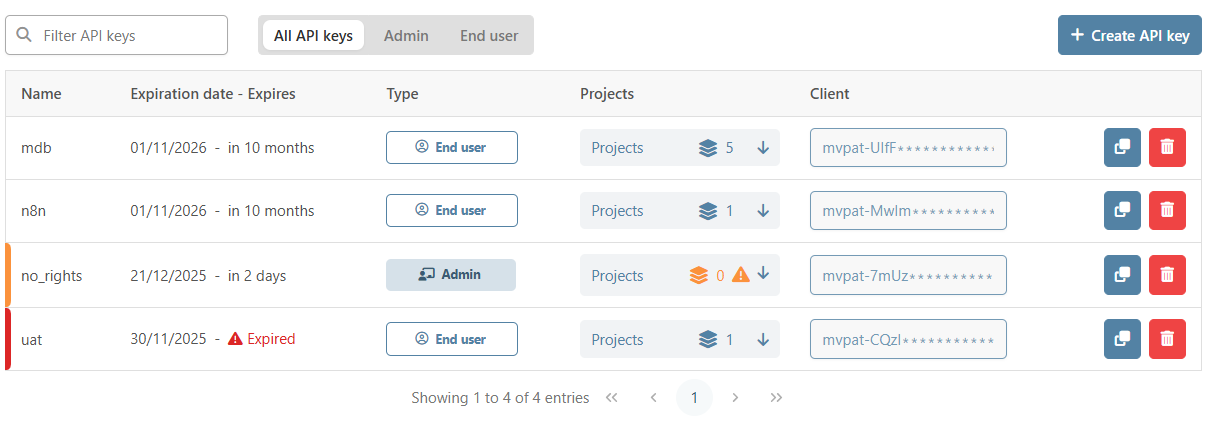
The main view displays all existing API keys with the following information for each key:
-
Name: A unique identifier for the API key
-
Expiration date: Displayed in the format
dd/MM/YYYY - In ([m] months | [d] days)-
When the API key expires in less than a month, the display switches to show the number of days remaining
-
Expired keys show "Expired" in red with a warning indicator
-
-
Type: Either "Admin" or "End user". This parameter defines the API calls that can be made with that key.
-
Projects: A button showing the number of projects assigned to this API key
-
API Key: A password-style field displaying only the first 10 characters of the key for identification purposes
-
⚠️ Expiration behavior
API keys expire at 00:00 on the specified expiration date. For example, if the expiration date is set to 31/12/2025, the key cannot be used on that date.
When attempting to use an expired key, you will receive a 401 error with the message: "API key expired".
If an API key has no projects assigned, the project count appears in orange with a warning line on the left side of the row.
Search and filter options
You can refine the list of API keys using the following filters:
-
Search by name: Use the search field in the upper-left corner to find specific API keys
-
Filter by type: Use the radio buttons to display:
-
All API keys
-
Admin only
-
End user only
-
The list is paginated with 10 items per page.
Creating a new API key
To create a new API key, click the "+ Create API key" button in the upper-right corner of the submodule.
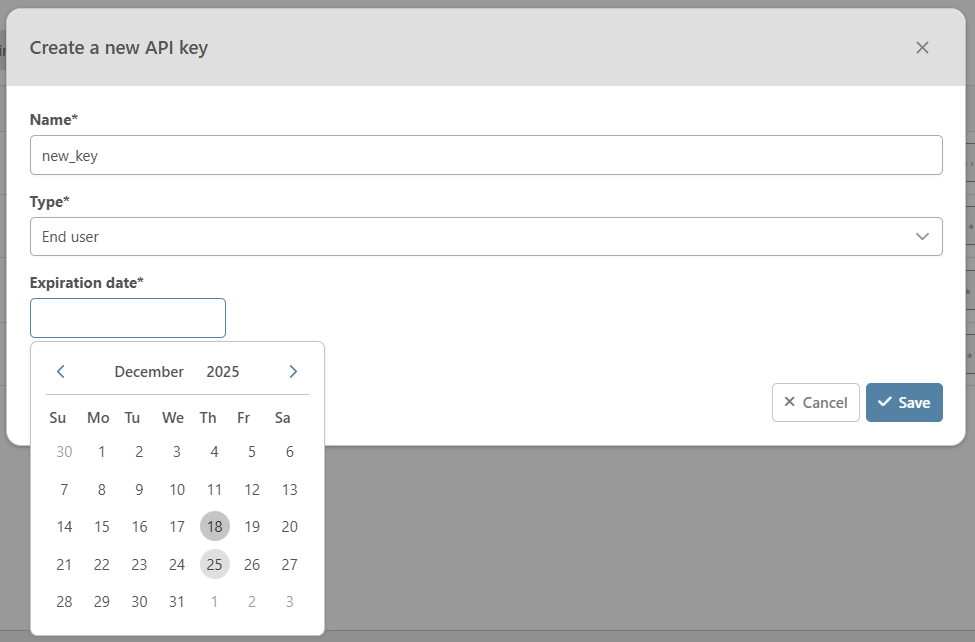
A pop-up window will appear with the following fields:
-
Name (mandatory): Must be unique across all API keys
-
If you attempt to save with an existing name, you'll see the error: "Name should be unique"
-
-
Type (mandatory): Select either "Admin" or "End user" from the dropdown
-
Default: End user
-
-
Expiration date (mandatory): The date when the API key will no longer be valid
-
Cannot be in the past
-
Cannot be more than one year from the current date
-
If you enter an invalid date, you'll see the error: "Please choose an expiration date that is in the future and within one year from today"
-
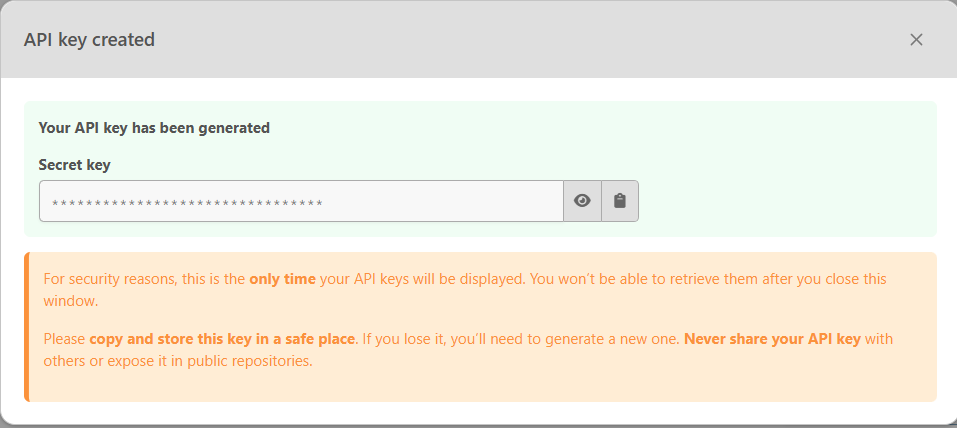
After clicking Save, the pop-up content changes to display your newly generated credentials.
Critical security warning
For security reasons, this is the only time your API key will be displayed. You won't be able to retrieve it after you close this window.
Please copy and store this key in a safe place. If you lose it, you'll need to generate a new one.
Never share your API key with others or expose it in public repositories.
Default permissions
Once the API key is created and the pop-up is closed, the new key appears in the list. No rights are assigned by default to the API key. You must explicitly assign project permissions before the key can be used effectively (see Access Management below).
Access management
API keys use the same rights management system as regular users. You can assign specific permissions for modules, projects, and environments.
To assign rights to an API key, click on the "Projects" button in the API key's row. This will expand the list of projects the API key can access.
The rights management interface and functionality are identical to user rights management. Please refer to the Users Management documentation for detailed information about:
-
Managing module availability (Read/Write permissions)
-
Managing environment accessibility (Read/Execute/Deploy permissions)
-
Assigning and removing project access
⚠️ Important
Actions performed using the API key are subject to the same permission checks as actions performed through the user interface. If you attempt an API call for which the key doesn't have the necessary rights, you will receive an error message.
Duplicating/renewing an API key
To create a copy of an existing API key or renew an expiring key, click the duplicate button on the right side of the API key row.

This opens the same creation pop-up as creating a new key, with the same validation rules. The new (duplicated) key inherits the same rights as the original key, saving you from having to reconfigure all permissions.
This feature is particularly useful when:
-
An API key is about to expire, and you need to maintain the same permissions
-
You need multiple keys with identical permissions for different applications
Deleting an API Key
To delete an API key, click the trashcan button on the right side of the API key row.
Using Your API Key
To authenticate your API requests to beVault, include the API key in the request headers.
Add the following header to all your API requests:
Authorization: ApiToken [your-api-key]
Replace [your-api-key] with the actual API key you generated.
Example Request
GET {{metavaultURL}}/metavault/api/projects
Authorization: ApiToken sk_abc123xyz789...
API Documentation
For detailed information about available API endpoints, request formats, response structures, and authentication methods, please refer to the complete Metavault API - General concepts documentation.