
Script
After creating an information mart, you can create one or more scripts that will gather as a set within the information marts. Scripts allows you to define the output of your beVault project that will feed any visualization tool, AI agent, data hub, …
In order to display the scripts, click the button ‘Scripts’ under the column with the same name for the information mart that you wish to explore and/or edit.
The following buttons are available for managing scripts:
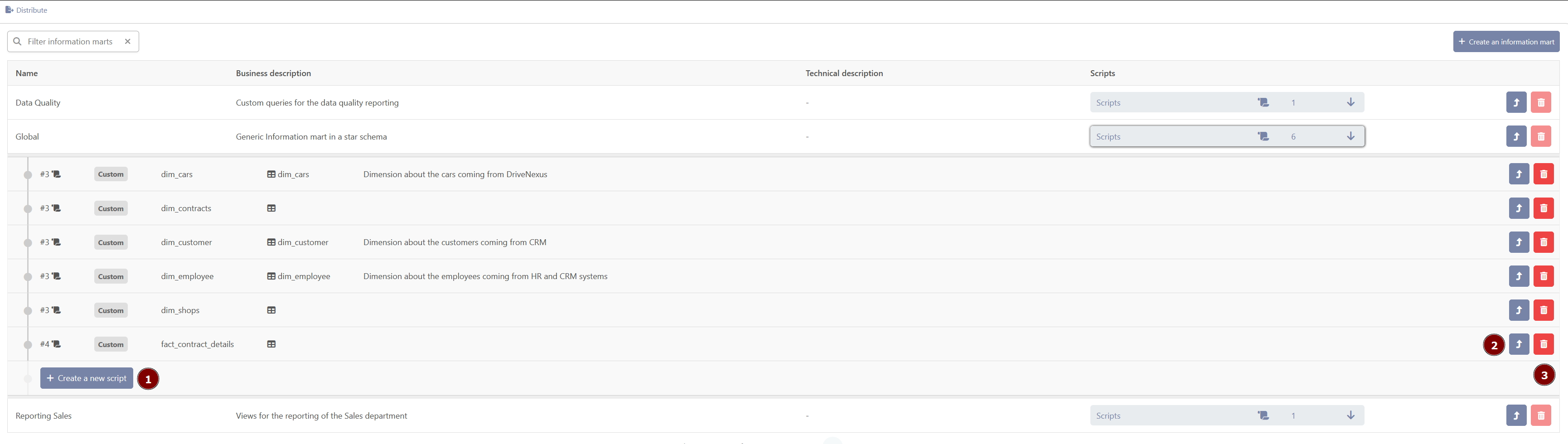
-
Create a new script
-
Modify an existing script
-
Delete an existing script
Create a new script
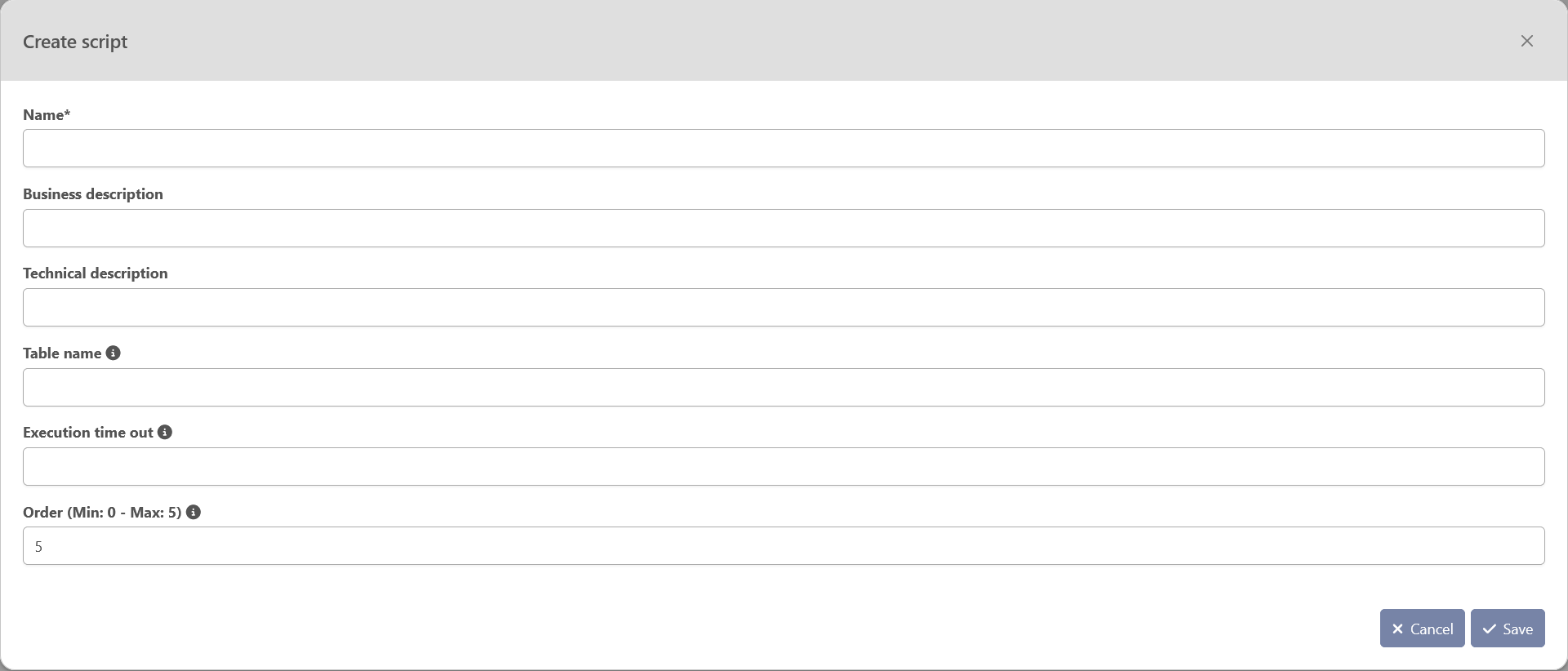
To create scripts, click on “Create a new script” and a pop-up wizard will open. You will need to provide the following information:
-
Name: mandatory – Name of the script. This name must be unique within the information mart, meaning that a single information mart cannot have two scripts with the same name.
-
Business Description: optional — Detailed information about the script from a business perspective (e.g.: its goal).
-
Technical Description: optional — Any descriptive detail on the technical aspect of the script
-
Table name: mandatory – Name of the table or view generated in the database
-
Execution time out: optional – Expected time for the query to be executed in the database. If filled in, this field will be used in the orchestrator to set up a timeout
-
Order: mandatory – Execution order of this script to generate the information mart. If multiple scripts have the same order, they will be executed in parallel. This information is used to generate a state machine in the orchestrator
After filling out the required and optional attributes for the script, click the “Save” button to create it. If the script is successfully created, it will appear in the list of scripts of the information mart.
Script’s dynamic tab
To modify an existing script, click the "Open in a new tab" button for the corresponding script.
The script's dynamic tabs are decomposed into 4 views accessible from the tabs in the top bar:
-
Metadata: Descriptive attributes of the information mart script
-
Columns: Output columns, their source columns, and applied transformations
-
Code: The SQL code of the script
-
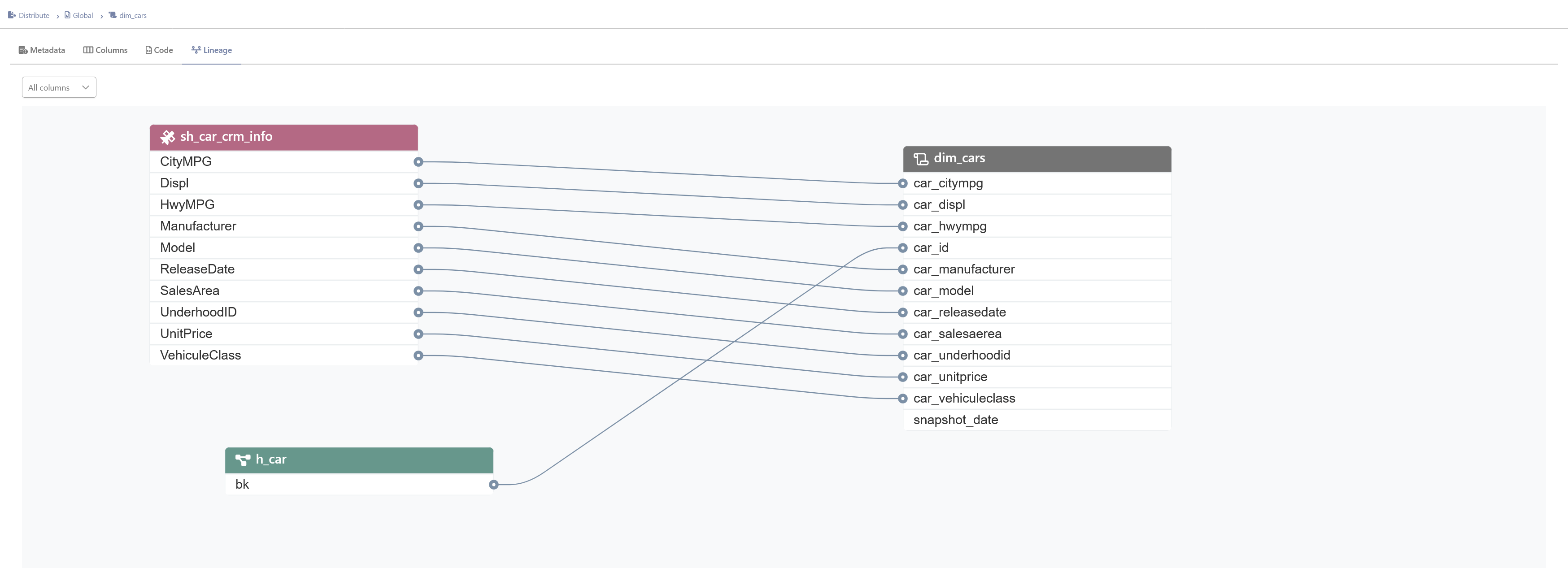
Lineage: Graphical visualization of data flow from the raw vault to the data product
Metadata
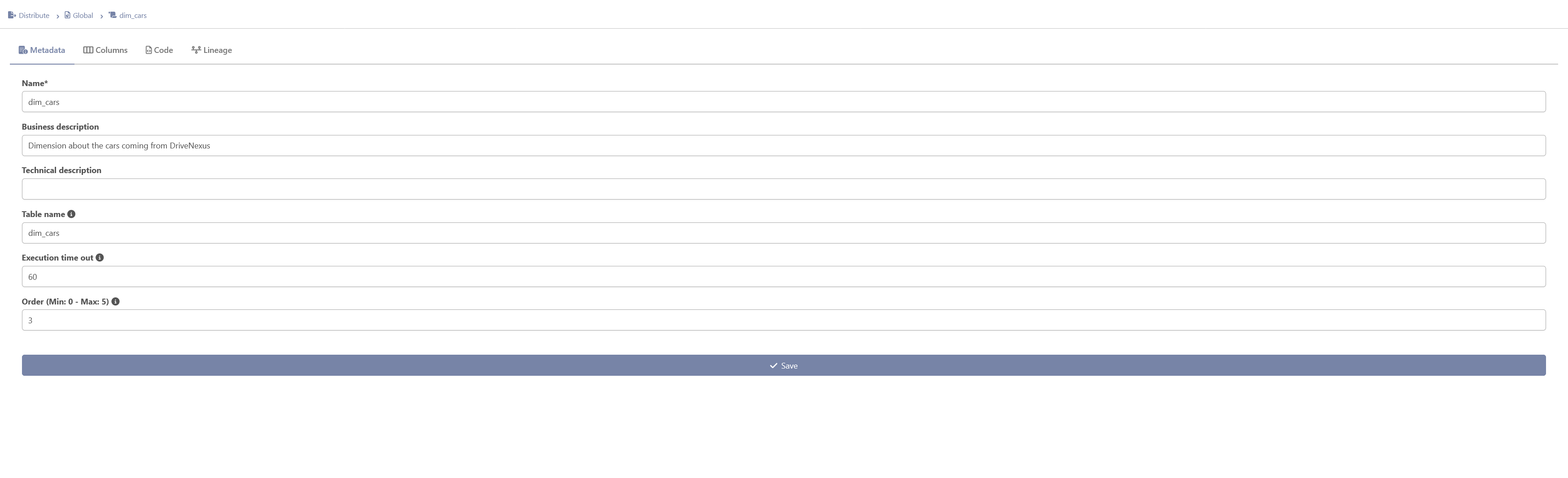
The metadata view contains essential descriptive information about your information mart script:
-
Name (mandatory): Unique identifier for the script
-
Business description: High-level explanation of the script's purpose and business value
-
Technical description: Detailed technical implementation notes
-
Table name: Name of the target table in the database
-
Execution time out: Maximum execution duration in seconds. This parameter is used in the state machine generated by beVault to execute the script in the target database.
-
Order (Min: 0 - Max: 0): Execution sequence priority. This parameter is used in the state machine generated by beVault to know in which order to execute the scripts of the same information mart. In can be changed in the parent information mart’s tab.
Once you have made your changes, click the "Save" button to apply them.
Columns
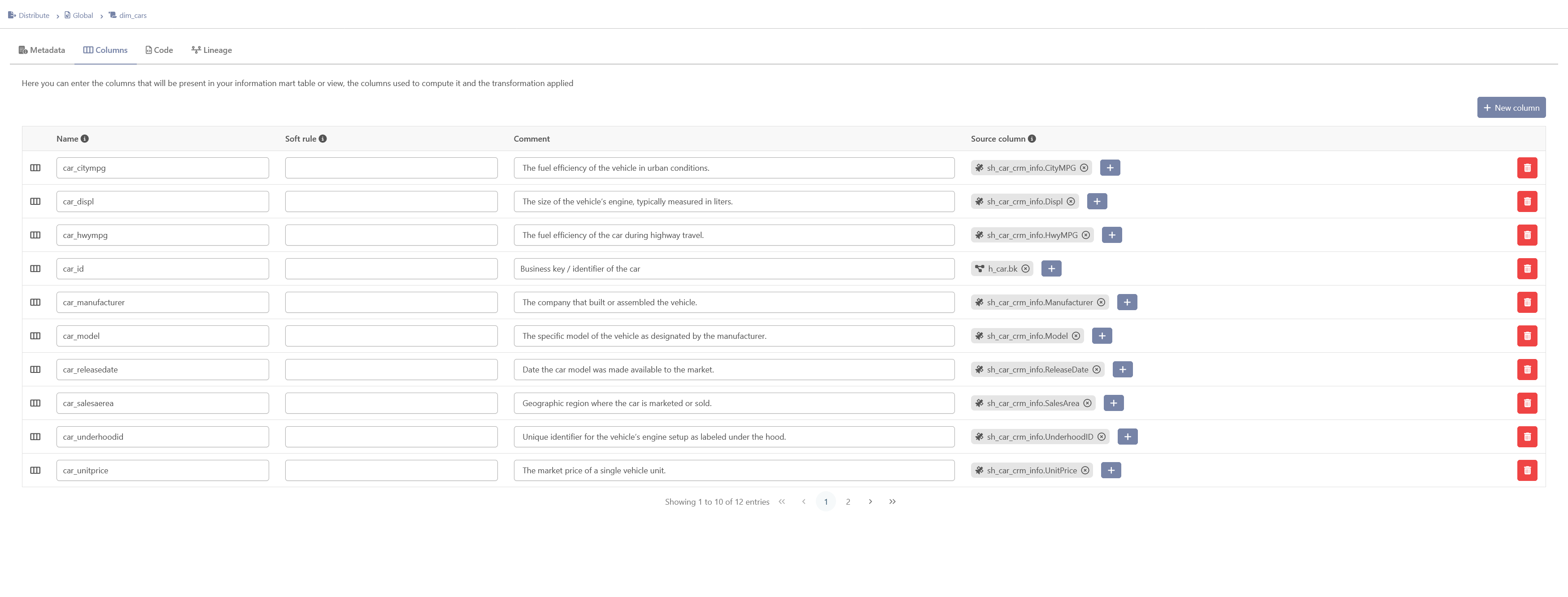
The columns view displays the output structure of your data product with detailed lineage information for each field.
Note: The columns defined in this section are purely informational and allow you to document the script you are writing. They provide transparency about data transformations and sources.
For each column, you can specify:
-
Name: Column name in the output table
-
Soft rule: The transformation applied to compute the output column
-
Comment: Description of the column's purpose
-
Source column: The raw vault fields used to construct this column
-
Click the source column selector to view and select available DV entities and their fields
-
A column can reference multiple source fields (for concatenations, calculations, etc.)
-
Code
The section ‘Script code’ is displayed. There, the SQL code of the script can be written, edited and saved. It is the code that will be executed in the database.
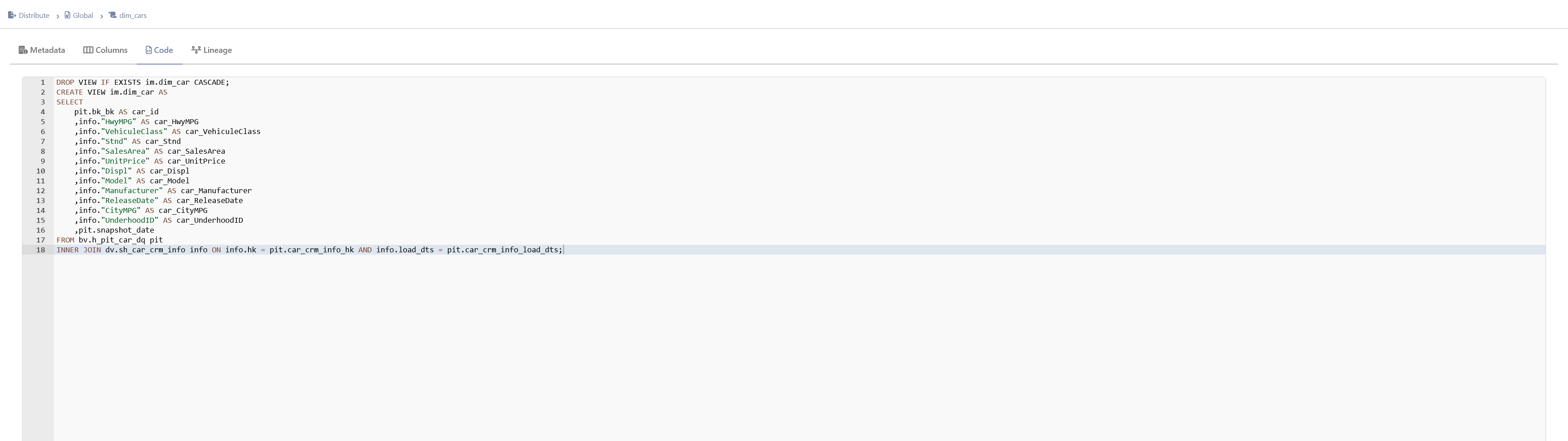
You can use double curly brackets {{ [variable] }} to add variables to your script. You will be to dynamically replace them with specific values in the orchestrator afterward.
If you need double curly brackets in your script, without them being replaced, please use {% raw %} and {% endraw %} at the beginning and the end of the query. This way, your query will not be interpreted and will be executed as it is
Lineage
The lineage view provides a visual representation of how data flows from the raw vault entities to your information mart script. This graphical view helps you understand data dependencies, trace data origins, and document transformations.
The graph is based on the data encoded in the “Columns” view.
Delete a script
To delete a script, click the ‘Remove’ button with the trash icon on the corresponding line.

Use your scripts
The scripts created are not directly applied to the databases.
To be able to use the script and execute them, you first need to create a new version and deploy it on an environment.
When deploying a new version, beVault automatically creates a state machine for each information mart to run the scripts in the order defined in the IM. The state machine is named :
[project]_[environment]_generate_[ IM name]
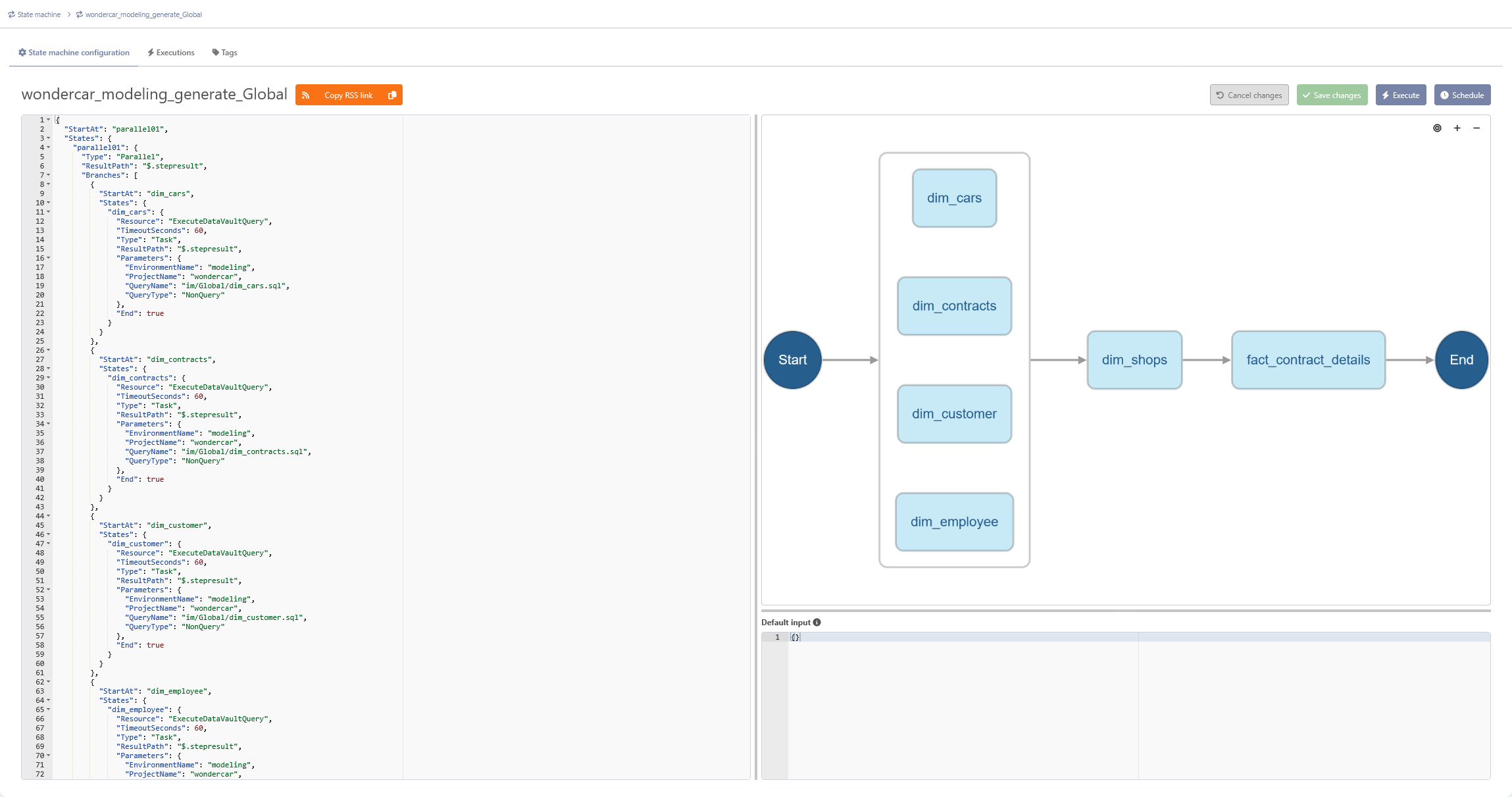
Alternatively, you can create your own state machine to use and execute the different scripts. (CFR: How to use an information mart script? )