The Data Stores module allows you to centrally manage all the store configurations available to your Workers directly from the States interface. A Data Store is a configured endpoint — such as a database or a file system — that Workers use to access or write data during the execution of a state machine.
Note: Prior to this feature, stores could only be configured via a stores.json file deployed directly on the Workers' server. This interface-based configuration complements that approach. When a store with the same name exists in both places, the local JSON file takes priority over the configuration defined in the interface.
For detailed information on the available store types and their configuration parameters, refer to Stores
On the homepage of the module, you can see the list of all Data Stores that have been configured through the interface.
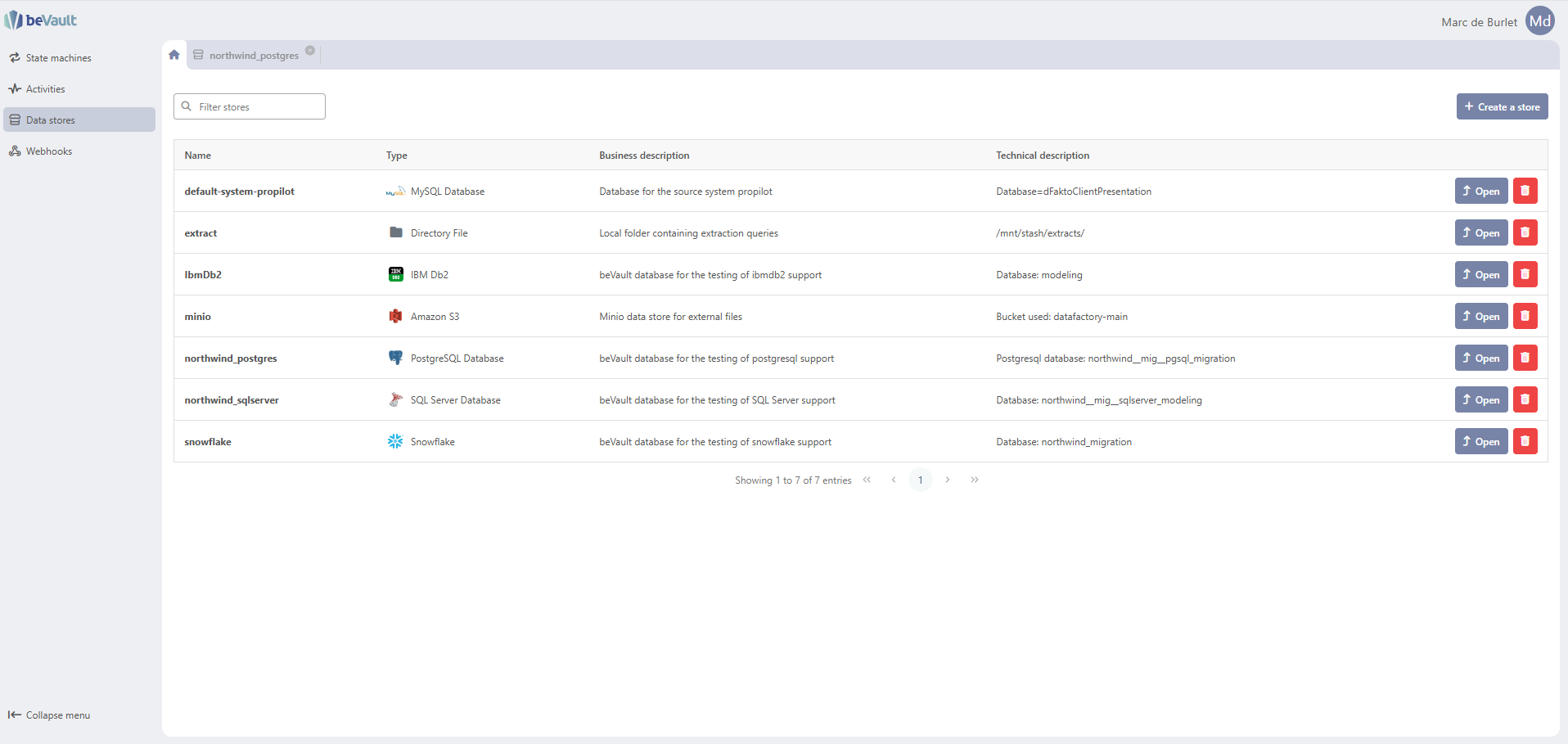
For each store in the list, the following information is displayed:
-
The name of the store
-
The type of the store, preceded by its icon
-
The business description
-
The technical description
-
A button to open the store's configuration tab
-
A button to delete the store
Note: This list only displays stores configured through the interface. Stores configured via a JSON file on the Workers' server are not shown here.
You can use the search bar to filter stores by name.
A store that has not yet been fully configured is flagged with a warning border in the list.
Create a Data Store
To create a new Data Store, click on the "Create a store" button on the homepage of the module.
A pop-up appears in which you can enter the following information:
-
Store Name — Must be unique. The store name is used to reference the store in state machines.
-
Business description — A human-readable description of the store's purpose.
-
Technical description — A technical description of the store's configuration.
-
Type of store — Select the type of store from the available tiles, each displaying the type's icon and name.
⚠️ Important: The type of a store cannot be changed once the configuration is saved.
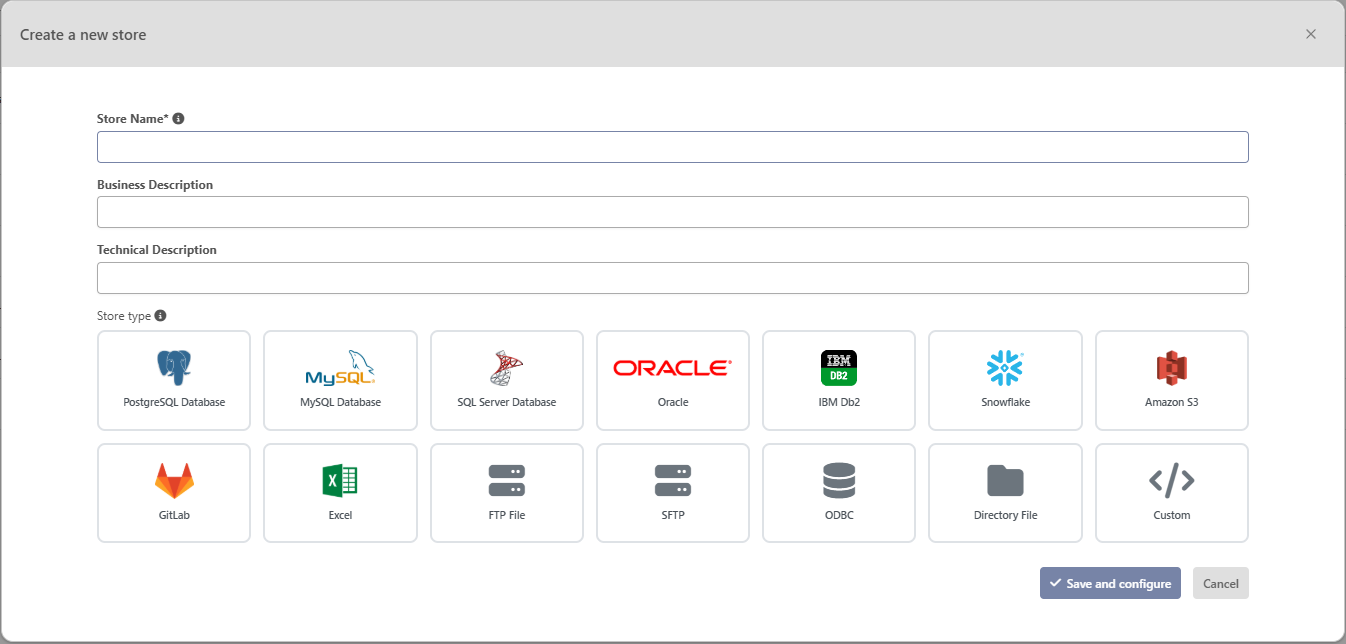
Click "Save and configure" to confirm. The pop-up closes, and the store's configuration tab opens automatically, allowing you to complete the configuration.
Configure a Data Store
Once the name, type, and descriptions have been entered, the store's configuration tab opens. You can also open it at any time from the list of stores by clicking the "Open in a new tab" button at the end of the store's row.
The tab's header displays the store's type icon and name.
Configuration Section
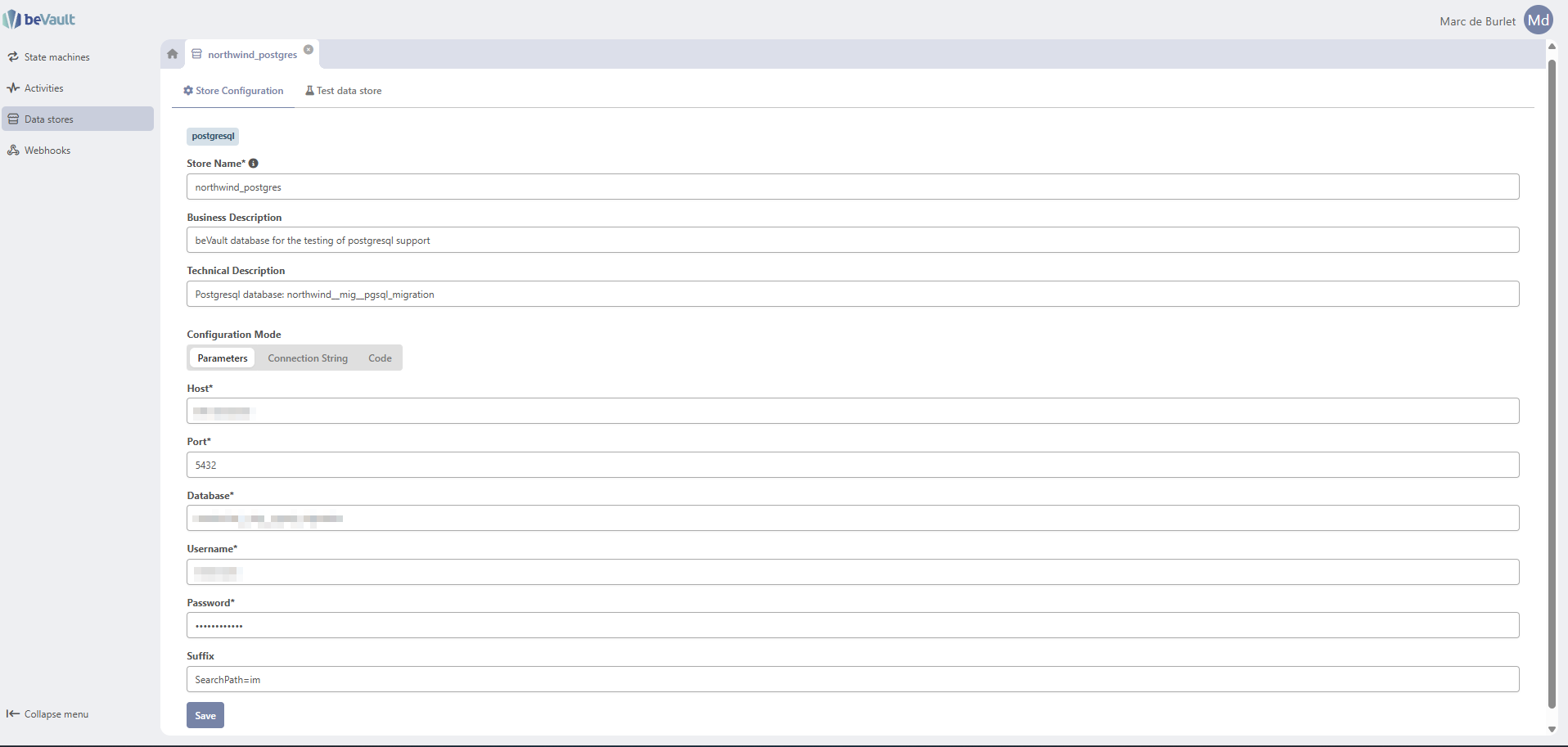
The Data Store's configuration section contains:
-
A type tag in the header (or an input field for
customstores) -
The store's name
-
The descriptions of the store
-
The store configuration, which varies depending on the type of store
The configuration can be entered in three different modes, selectable via a toggle:
-
Parameters — Fill in a dedicated form with individual fields specific to the store type. This is the default mode when no configuration is set.
-
Connection string — Enter a connection string manually. Available for database stores (
dbStores). -
Code — Enter the configuration directly as a JSON object. This mode can be used to configure any additional key if you extended the Store’s implementation in your custom workers.
ℹ️ Note: If a configuration already exists and you switch between modes, a warning message will appear indicating which mode is currently active: "This store is configured with [mode]".
The mode displayed by default follows this logic:
If the JSON contains unrecognised keys, Code mode is opened by default.
Else if a connection string is filled in, Connection string mode is opened by default.
Else if the configuration can be fully parsed, Parameters mode is opened by default.
For the full list of configuration parameters specific to each store type, refer to Stores
Click "Save" to save your changes.
Test a Data Store Connection
Workers can be deployed across multiple environments — for example, on different servers, network zones, or physical locations. Each deployment is identified by an environment name, set via the EnvironmentName parameter in the Worker's configuration at deployment time.
Because a Data Store configured in the interface is shared across all Worker environments, its actual accessibility may vary depending on where a Worker is deployed. For instance, a database reachable from a production server may not be accessible from a Worker deployed in an isolated network. The connection test feature allows you to verify, for each environment, whether the Data Store is actually reachable from that Worker's location.
From the store's configuration tab, an "Test data store" accordion section displays the test results for each known Worker environment.
This section displays a table with the following columns:
|
Column |
Description |
|---|---|
|
Environment |
The environment name of the Worker, as defined in its configuration file at deployment. |
|
Last test |
The date and time of the last test execution. |
|
Status |
The result of the last test: Success, Failed, or Disabled. |
|
Message |
The error message returned by the health check when the test fails. |
ℹ️ Notes:
A store is marked as Disabled when a local configuration with the same name has been found on the Workers of that environment. The following message is displayed: "Store configuration was correct but store is disabled because a worker store with the same name already exists."
By default, tests are executed every 60 seconds, but this interval can be configured at Worker deployment time.
Examples:
-
Success

-
Failed

-
Disabled

Delete a Data Store
To delete a Data Store, click the delete button at the end of the store's row in the list on the homepage of the module.
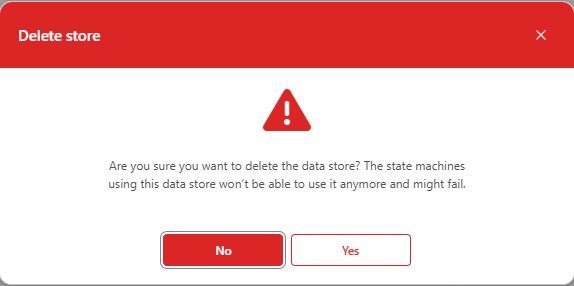
A confirmation message appears:
"Are you sure you want to delete the data store? The state machines using this data store won't be able to use it anymore and might fail."
-
Click "Confirm" to permanently delete the store. It will be removed from the list immediately.
-
Click "Cancel" or close the dialog to abort the deletion.
⚠️ Warning: Deleting a store that is referenced in one or more state machines will cause those state machines to fail upon execution. Make sure no active state machine depends on the store before deleting it.